How to plug an open-weight model into your coding agent
Run an open-weight model in your coding agent with Otari by Mozilla AI: add web search, compare it with a frontier model and see where every token goes.


In this post, I will try to show how you can point the coding agent you already use at Otari by Mozilla AI, run an open-weight model through it, give that model a web search tool you control, and compare it with a frontier model on the same task.
What you need
You'll need a coding agent that lets you change its endpoint. I use Claude Code and Pi below. Otari's docs also have setup guides for these:
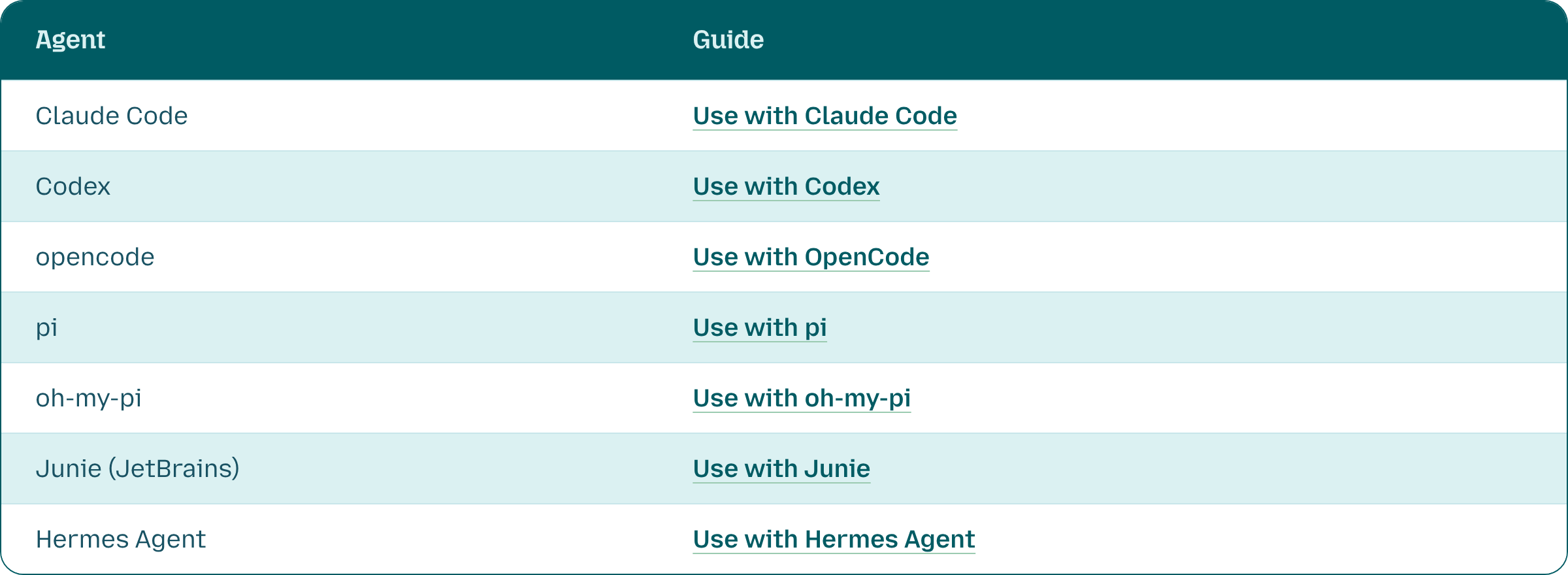
You'll also need an Otari account, or Otari running on your own machine, and about half an hour.
Step 1: Get Otari running
The quickest route is the managed version: sign up at otari.ai. You can use the providers it already supports straight away, or add your own provider keys. If you'd rather run it yourself, it's open source; the code is at github.com/mozilla-ai/otari.
Either way, open your workspace, go to API keys and click Create key.
If you plan to use Claude Code, open Advanced and set Mismatched `user` field to Always accept. Claude Code sends its own value in that field, and a key left on the default refuses its requests with a 403.
Copy the key (it's only shown once) and put it in your shell:

I use the default US endpoint, https://api.otari.ai, throughout.
Accounts in the EU use https://eu.api.otari.ai, and a self-hosted Otari uses its own URL.
Step 2: Pick your models
On the Models page you can filter by provider and capabilities, then click Use this model to copy its ID. For this post I used:
- moonshotai/kimi-k3 as the main open-weight model
minimax/minimax-m3 for Claude Code's small background calls
To check that your key can reach them:

Step 3: Point your agent at Otari
You don't change how you use the agent, only where it sends its requests.
Claude Code
Claude Code speaks the Anthropic Messages API, and Otari serves it. Set three variables:

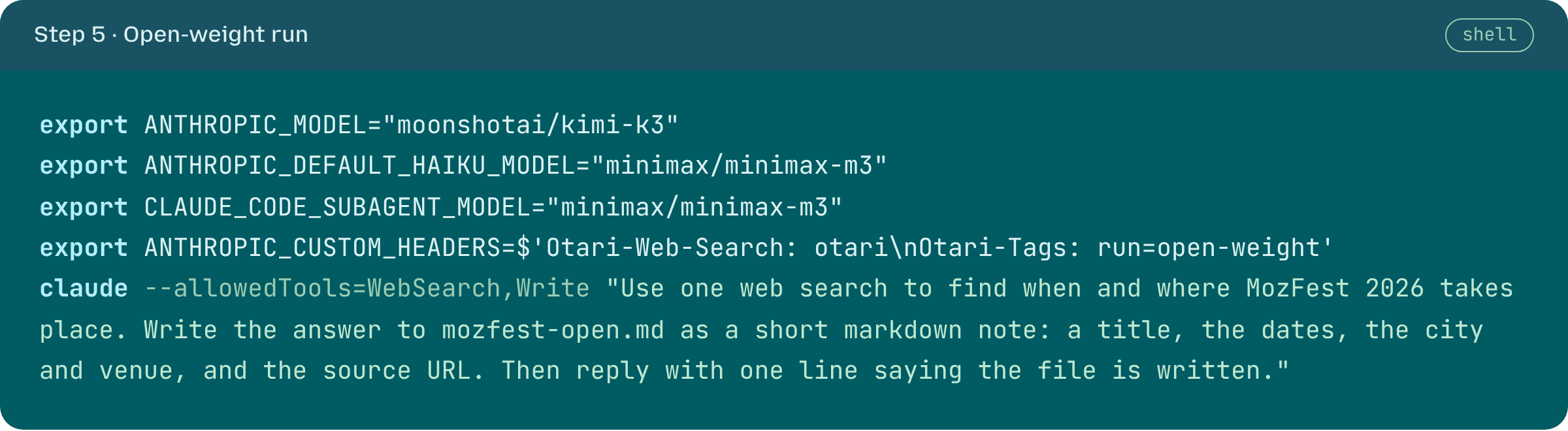
Claude Code also makes small background calls and starts subagents on a second model. If you only set the main model, those calls still go to Anthropic. To keep the whole session on open-weight models, set the other two as well:

Pi
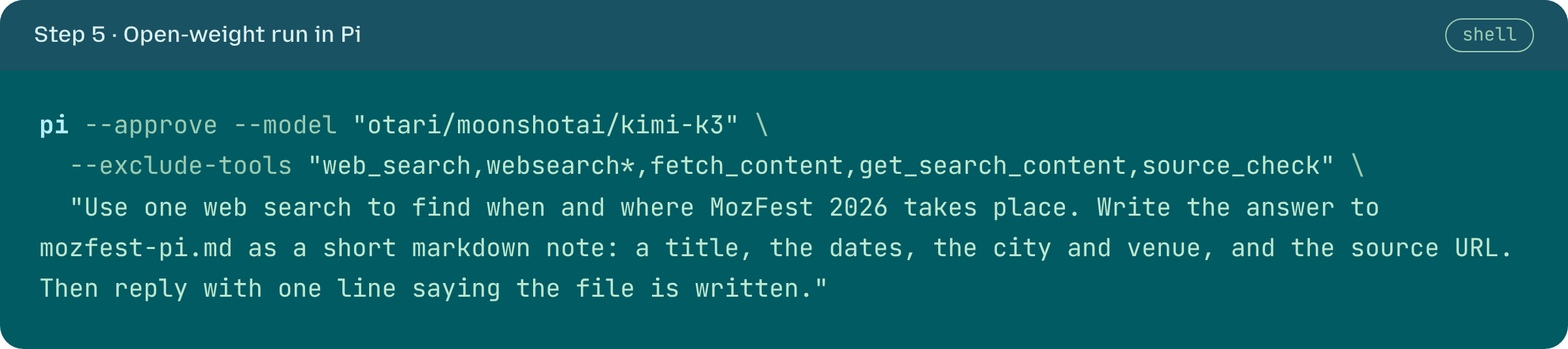
Pi is a minimal terminal coding agent. The pi-otari extension adds Otari as a provider:

Start pi, run /login otari and paste your key. Then use /scoped-models to enable the Otari models you want, and /model to pick one. If you're on the EU region, set OTARI_BASE_URL=https://eu.api.otari.ai/api/v1 before starting pi. For scripts and CI, set OTARI_API_KEY instead of logging in.
Anything else
Otari also exposes an OpenAI-compatible endpoint at https://api.otari.ai/api/v1. Any agent that lets you set an OpenAI base URL and key can use it. The guides in the table above cover the quirks of each one.
Step 4: Give the model its tools
This is the step that makes the difference.
In your workspace, go to Tools → Web search and turn on Allow. Under Who runs provider web search, choose Otari. From then on, when the model asks for a search, Otari runs it and hands back the results, whatever model is behind the request.
You can also choose per request instead. In Claude Code that's one header:

Pi doesn't need this: the extension offers Otari's search and fetch tools to the model automatically.
Tools → Code execution works the same way, and lets the model run code in a sandbox. A coding agent already runs code on your own machine, so I left it off for this task. It's worth turning on for agents that don't have a shell.
Step 5: Run the same task on both
I used a small task with one search, one file write and an answer you can check:
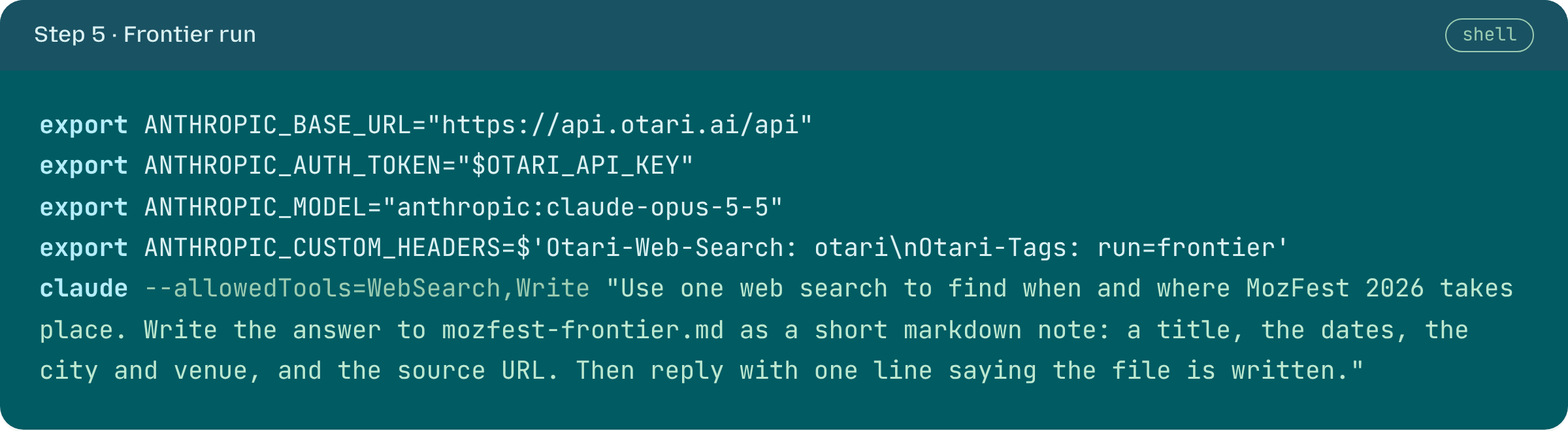
Use one web search to find when and where MozFest 2026 takes place. Write the answer to mozfest.md as a short markdown note: a title, the dates, the city and venue, and the source URL. Then reply with one line saying the file is written.
To tell the runs apart later, I tagged each one with Otari-Tags. ANTHROPIC_CUSTOM_HEADERS takes several headers, one per line.
The frontier run with our web search:
The open-weight run with our search:
And the same open-weight model in Pi:
Step 6: See where the tokens went
Open Overview in your workspace. It has three tabs over the same time range and filters:
- Usage shows spend, tokens and requests over time. Because the runs were tagged, you can filter or group by run and put the frontier and open-weight runs side by side.
- Requests is the per-request log, with the model, tokens, cost and status of each call. A failed call shows up here as an error, and you can open it to see why. Use this tab to check that the open-weight run really stayed on open-weight models, background calls included.
Sessions shows each agent run as a whole. Claude Code is recognized automatically when it goes through Otari, and Pi sends its own session ID. Open a session and At a glance splits its time and cost and shows what filled the context window. The timeline shows every model call and the web_search call that Otari ran.
When to use an open-weight model
Open-weight models do well on most everyday agent work: looking things up, editing files, routine refactors, anything you'll review anyway.
They get close to frontier on that kind of work at a fraction of the price, as long as they have the tools frontier models get for free.
For long, hard reasoning, or work where small mistakes are expensive, a frontier model can still be worth what it costs.
The useful part is that you don't have to guess any more. You can run both, look at the session, and decide on your own tasks with real numbers.